Mastering Your Visual Brand with Dabestfeed Instagram Templates
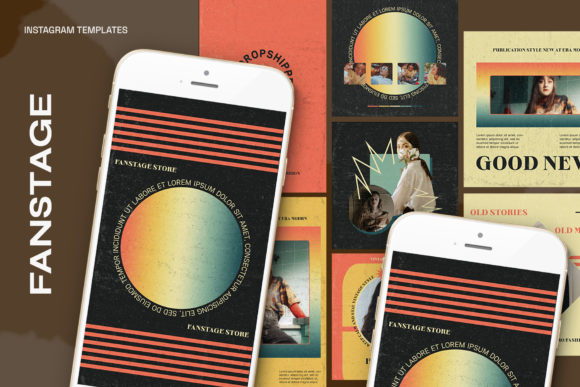
In the fast-paced world of social media, consistency is often the difference between a scrolling user and a loyal follower. For entrepreneurs, marketers, and creators looking to elevate their presence without hiring a dedicated design team, Dabestfeed Instagram Templates offer a practical solution. These resources are designed to streamline the content creation process, allowing you to maintain a professional aesthetic while saving valuable time. However, simply downloading a template pack is not a magic bullet for success. Many users stumble not because the tools are flawed, but because they overlook critical technical details or misunderstand how to integrate these assets into a cohesive strategy. Understanding the nuances of file types, resolution, and editing workflows is essential to getting the most out of your investment.
The Trap of Ignoring Technical Specifications
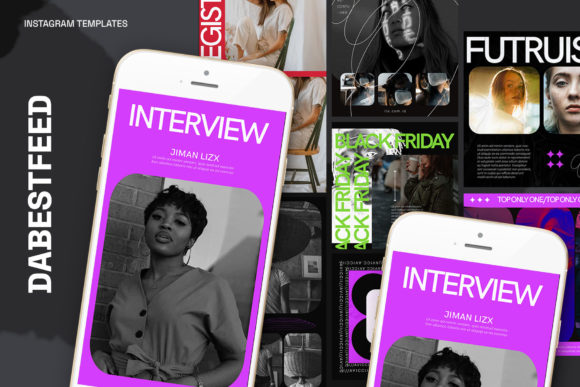
One of the most common mistakes beginners make is diving straight into editing without verifying the technical specifications of the file. When you acquire a resource like the Dabestfeed Instagram Templates, you are typically receiving a high-quality PSD (Photoshop) file. This specific package boasts impressive specs: 300 DPI, RGB color mode, and versatile dimensions including 1200 x 1200 px for square posts and 1920 x 1080 px for landscape or story adaptations. Ignoring these settings can lead to pixelated images on high-resolution screens or colors that look dull when published.
For instance, if you attempt to resize a low-resolution image to fit these templates, the final output will appear blurry, damaging your brand's credibility. Conversely, these templates are built at 300 DPI, which is ideal for print quality but also ensures crisp clarity on retina displays. A better approach is to check your document settings in Photoshop before you begin. Ensure your workspace matches the template's native resolution. If you are working with photos taken on a smartphone, be aware that they might default to 72 DPI. While this is fine for web, importing them into a 300 DPI canvas requires careful handling to ensure they don't lose quality during the scaling process.
Misunderstanding Smart Objects and Workflow Efficiency
The true power of these templates lies in their use of Smart Objects, yet this feature is frequently misunderstood or underutilized. The included instructions highlight a specific workflow: "Double Click on image layer, click twice layer icon on image group, Put Your Image, CTRL S." This sequence is designed to make swapping images effortless, but skipping steps or forcing images into layers incorrectly can break the template's structure.
A frequent error occurs when users try to drag and drop images directly onto the canvas instead of utilizing the Smart Object container. This often results in the image being cropped awkwardly or losing the pre-applied filters and shadows that give the design its depth. To avoid this, treat the Smart Object as a protected frame. When you double-click the layer thumbnail, a separate window opens. Place your photo there, save it (CTRL+S or CMD+S), and watch it automatically update in the main composition. This method preserves the non-destructive nature of the edit, meaning you can swap the photo ten times without degrading the image quality. Taking the extra few seconds to follow this specific protocol ensures that every post looks polished and intentional.
The Illusion of "Set and Forget" Customization
Another pitfall is assuming that because the text is editable, no design judgment is required. The Dabestfeed Instagram Templates come with fully editable text layers, which is a fantastic feature for flexibility. However, many users make the mistake of pasting long captions directly into headlines or changing fonts to something that clashes with the overall vibe. Just because you can change the font doesn't mean you should.
Design hierarchy matters. The original template likely uses specific font weights and sizes to guide the viewer's eye from the headline to the call-to-action. If you replace a short, punchy headline with a paragraph of text, you disrupt this balance, making the graphic look cluttered and unprofessional. A more effective strategy is to adapt your message to fit the design, rather than forcing the design to accommodate a poorly structured message. Keep your on-image text concise. Use the template's existing styles for consistency, and only deviate if you have a strong understanding of typography. Remember, white space is your friend; it allows your content to breathe and makes your message easier to digest quickly.
Overlooking Color Consistency and Brand Identity
While the RGB color mode ensures vibrant colors on digital screens, users often neglect to align these colors with their existing brand identity. It is tempting to leave the default colors because they look good in the preview, but this can lead to a disjointed feed where one post looks like it belongs to a completely different company than the next. Before you start批量 producing content, take a moment to sample your brand's hex codes and apply them to the template's color layers.
This step transforms a generic template into a branded asset. If your brand relies on earth tones but the template defaults to neon blues, the disconnect will be obvious to your audience. Use the adjustment layers in Photoshop to shift hues slightly if needed, ensuring that the template enhances your brand rather than overpowering it. Consistency builds trust, and a cohesive color palette across your grid signals professionalism and attention to detail.
Making the Right Choice for Your Needs
Before committing to any template pack, including Dabestfeed Instagram Templates, evaluate your current workflow and skill level. These files require Adobe Photoshop. If you do not have access to this software or prefer browser-based tools like Canva, a PSD file might create more friction than it solves. In that case, looking for formats compatible with your preferred tool would be a wiser decision. However, if you have Photoshop and want granular control over lighting, shadows, and texture, this format is superior.
Additionally, consider the variety within the pack. A good template set offers different layouts for quotes, product showcases, and announcements. Relying on a single layout repeatedly can make your feed feel stagnant. Use the variety provided to keep your audience engaged. Mix square posts with landscape graphics to break up the visual rhythm of your profile page.
Ultimately, tools like these are meant to empower you, not restrict you. By respecting the technical foundations—such as the 300 DPI resolution and Smart Object workflow—and applying thoughtful design principles regarding text and color, you can produce high-quality content that resonates with your audience. Avoid the shortcut of rushing through the setup; the time invested in learning the proper workflow pays off in the form of a stunning, professional Instagram presence that stands out in a crowded marketplace.